

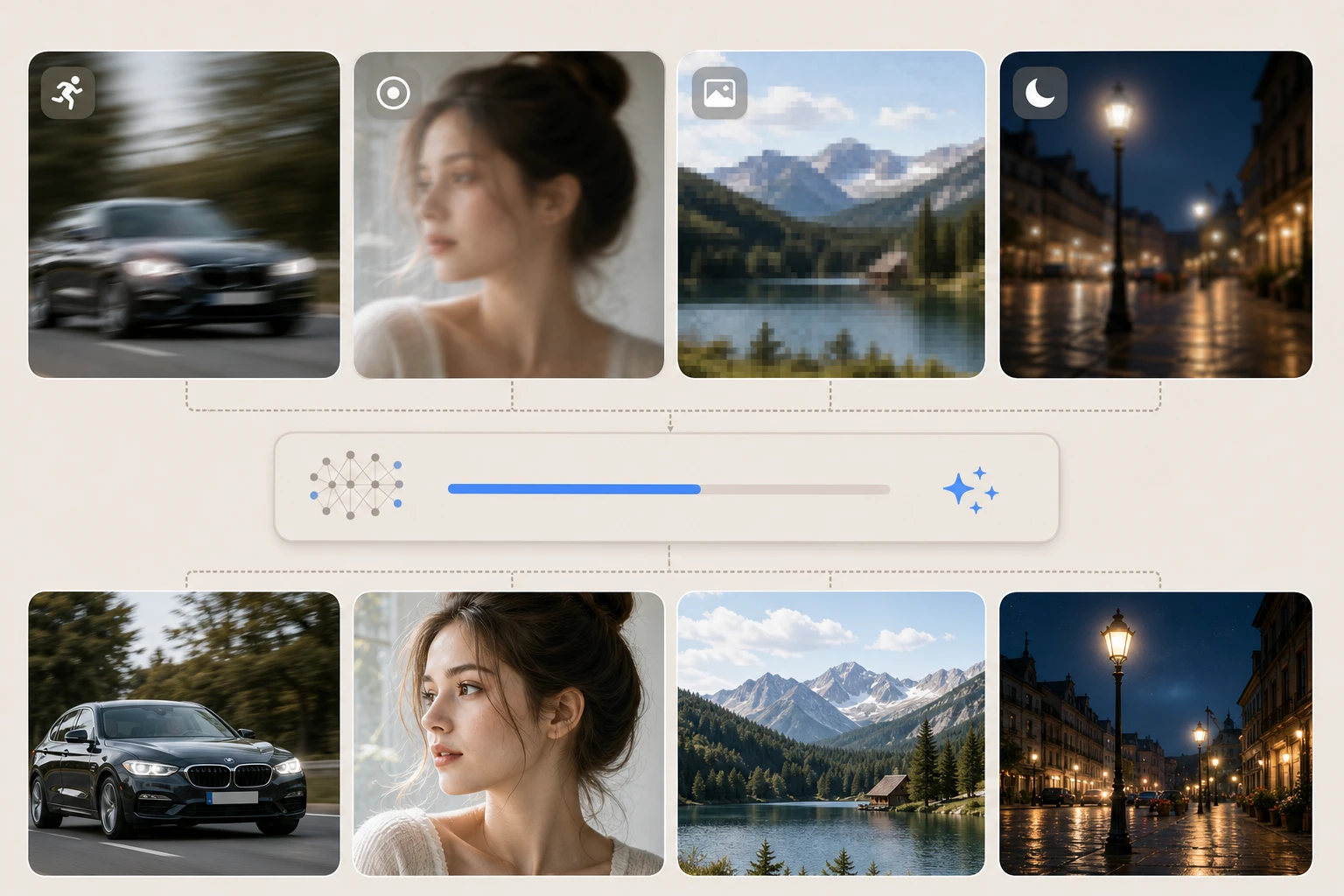
You have probably found the perfect photo for your project, only to realize it is too small. When you try to make it bigger, the edges get blurry and the details disappear. This is a common problem for designers, bloggers, and small business owners who need high quality visuals for print or web. You can fix this issue by using an image upscaler 16k to transform low resolution files into sharp, professional images. This technology does not just stretch pixels, it uses smart logic to fill in the gaps and create new details that were not there before.
Managing a creative project involves more than just fixing one photo. You often have dozens of tasks like resizing images, removing backgrounds, and organizing files. Doing all of this manually takes a lot of time and energy. You can use an AI Creative Agent to handle these repetitive chores so you can focus on the actual design work. These tools act like a digital assistant that follows your instructions and speeds up your entire production process. You’ll see a huge difference in how much you can get done in a single afternoon.
Table of Contents
Step by Step Guide to AI Upscaling and Automation
Step 1: Prepare Your Source Files
Before you start using any software, you need to gather your original images. Even though AI is powerful, it works best when the starting image has some clear features. Try to find the version of the photo with the least amount of blur. If you have a choice between a tiny clear photo and a larger blurry one, the smaller clear photo usually gives better results. Put all the files you want to process into one folder on your computer to keep things organized.
Step 2: Choose Your Upscaling Settings
Open your chosen tool and upload your first image. You will usually see options for how much you want to enlarge the file. Common choices are 2x, 4x, or even 8x the original size. If you are preparing a photo for a large poster, you should choose the highest setting available. Some tools also offer specific modes for different types of content. For example, a portrait mode focuses on skin textures, while a landscape mode might prioritize sharp edges on buildings or trees.
Step 3: Run the AI Processing
Once you select your settings, let the software do the work. The AI looks at every pixel and compares it to millions of other images it has seen before. It predicts what the missing details should look like. This process can take a few seconds or a couple of minutes depending on the size of the file. You should wait until the preview looks exactly how you want it before you move to the next step. If the image looks too smooth or plastic, try reducing the noise reduction setting.
Step 4: Automate the Workflow
Now that you know how to upscale a single image, you can set up a workflow for your entire project. You can tell your digital agent to watch a specific folder. Every time you drop a new low resolution photo into that folder, the agent can automatically upscale it, remove the background, and save it as a high quality PNG file. This removes the need for you to click through the same menus over and over again. It makes your creative pipeline much more efficient.
Step 5: Review and Export
Always check the final result at 100 percent zoom. Look for any strange artifacts or parts of the image that look unnatural. AI is very good, but it can sometimes make mistakes with text or very complex patterns. If everything looks good, export your files using a format that preserves quality. PNG is great for digital use, while TIFF is often preferred for professional printing. Save your new high resolution assets in a dedicated folder so they are ready for your final design.
Tips and Best Practices
To get the best results, you should always start with the cleanest image possible. AI can fix many things, but it cannot magically create a face from a single brown pixel. If your source image is full of digital noise or heavy compression blocks, try using a denoiser tool before you upscale. This gives the AI a cleaner foundation to build upon. You will notice that the final output looks much more natural when the input is clean.
You should also think about the final use of your image. If you are only posting to social media, a 2x upscale is usually enough. If you are printing a billboard, you will need to push the limits of the software. Always keep your original files in a separate folder. You never want to overwrite your only copy of a photo just in case you want to try a different upscaling setting later.
Another great tip is to use batch processing whenever you can. Most modern tools allow you to upload twenty or thirty images at once. You can apply the same settings to all of them and go get a cup of coffee while the computer does the hard work. This is the best way to handle large projects like product catalogs or event photo albums.
Common Mistakes to Avoid
One big mistake people make is over processing their images. It is tempting to turn all the sliders up to the maximum level. However, this often leads to images that look like they were painted with oil rather than photographed. The goal is to make the image look like it was originally taken at a high resolution, not like a digital filter was applied to it. Use a light touch with sharpening and noise reduction.
Another error is ignoring the aspect ratio. When you upscale, ensure the software maintains the original proportions of the photo. If you accidentally stretch the width more than the height, people will look shorter and wider than they really are. Most tools have a lock icon to keep the proportions the same, so make sure that is turned on.
Finally, do not forget to check the file size. High resolution images can become very large, sometimes hundreds of megabytes. If you are using these for a website, they will make your pages load very slowly. You might need to use a compression tool after upscaling to find a balance between visual quality and file weight. This ensures your site stays fast while your images stay beautiful.
Conclusion
Using AI to improve your images and manage your projects is a smart move for anyone in the creative field. You no longer have to settle for grainy photos or spend all day doing boring tasks. By following the steps in this guide, you can take control of your visual quality and get your work done much faster. Start by experimenting with a few photos to see how the technology handles different textures and colors. You’ll quickly see how these tools become an essential part of your daily routine.
The combination of high resolution upscaling and automated agents gives you a professional edge. You can produce work that looks like it came from a big agency even if you are working alone. Keep practicing with different settings and workflows to find what works best for your specific style. The more you use these tools, the more time you will have to be creative and come up with new ideas. High quality visuals are now within your reach with just a few clicks.