

Custom stickers give channels a distinct identity that standard emojis cannot offer creators. Mascots, reaction faces, and branded graphics help audiences recognize your content across platforms. Creating these designs once required drawing skills or support from an experienced illustrator.
An AI sticker generator turns written ideas into custom artwork without manual drawing work. Filmora generates stickers from prompts and lets creators use them within video projects. Clear prompts guide the design, expression, style, and details of each generated sticker.
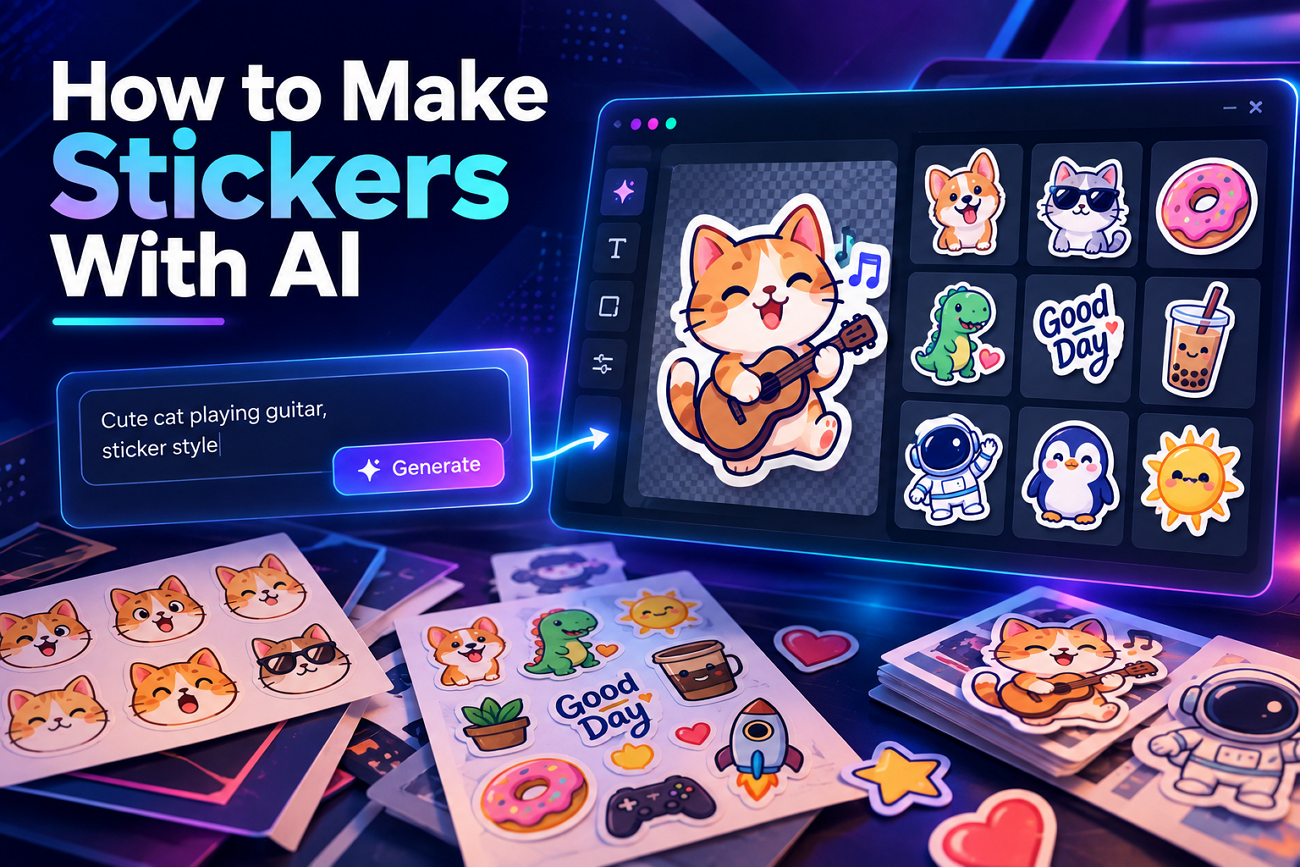
Table of Contents
Part 1. What Is a Sticker Maker and Why Use AI?
A sticker maker creates custom graphics for chats, videos, social posts, and streams. AI turns written descriptions into sticker designs without requiring advanced illustration skills. For stickers, create your own designs using prompts, templates, or existing image edits. The table below compares these 3 sticker creation methods and their ideal uses:
| Route | How It Works | Best When |
|---|---|---|
| Start From a Template | Pick a ready-made sticker and swap the text or the colors. | You need something quickly, and the subject is generic. |
| Edit an Existing Image | Remove the background from a photo or illustration and refine its edges. | The subject already exists as a picture you own. |
| Generate From a Description | Describe the sticker you want and let the AI generate it. | No suitable image exists and creating one manually is impractical. |
AI has changed how people create custom stickers without needing strong drawing skills. You can design your own stickers by describing the subject, style, and expression. Generated designs offer more creative control than templates without requiring manual illustration work.
Part 2. What to Look for in a Tool to Make Your Own Stickers
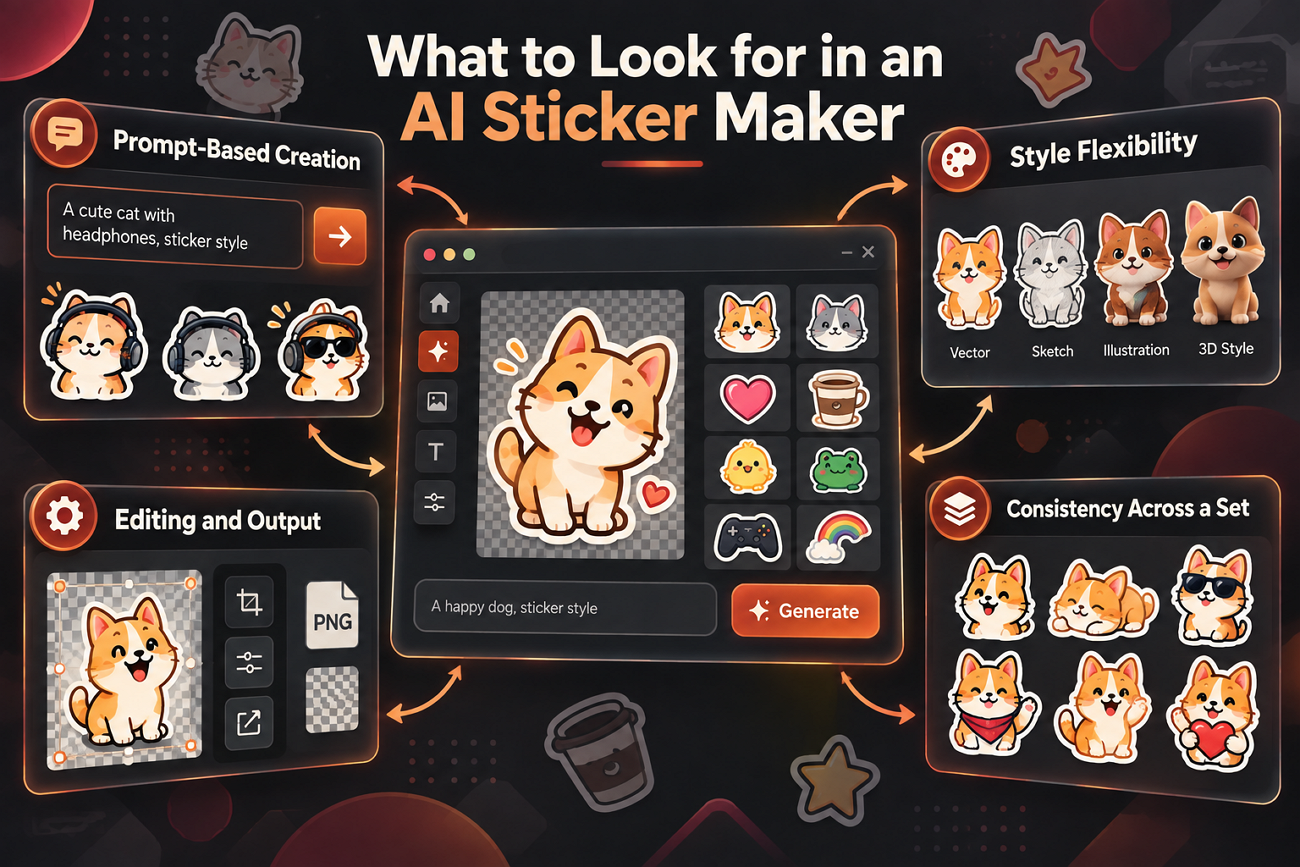
AI sticker tools differ in how much control they provide during creation. The right features help produce usable designs while reducing unnecessary editing work. Let’s examine 4 features that matter when choosing your sticker creation tool:
- Prompt-Based Creation: Text prompts should provide enough space for subjects, expressions, and details. Longer prompts support more specific instructions for each generated sticker design.
- Style Flexibility: Multiple styles help stickers match different content themes and brand identities. Vector, sketch, illustration, and 3D styles serve different visual needs well.
- Editing and Output: Built-in editing should support background removal, cropping, resizing, and transparent exports. PNG export keeps transparent backgrounds ready for videos and social content.
- Consistency Across a Set: Matching stickers need consistent characters, colors, outlines, proportions, and visual styles. A custom sticker maker should maintain these traits across each sticker set.
Part 3. How to Create Stickers with Filmora AI Sticker Generator
Each Filmora prompt generates 4 sticker options instead of returning a single result. This compares variations of one idea instead of one result against a blank field. Filmora provides all 4 generated stickers, letting you select one before making changes.
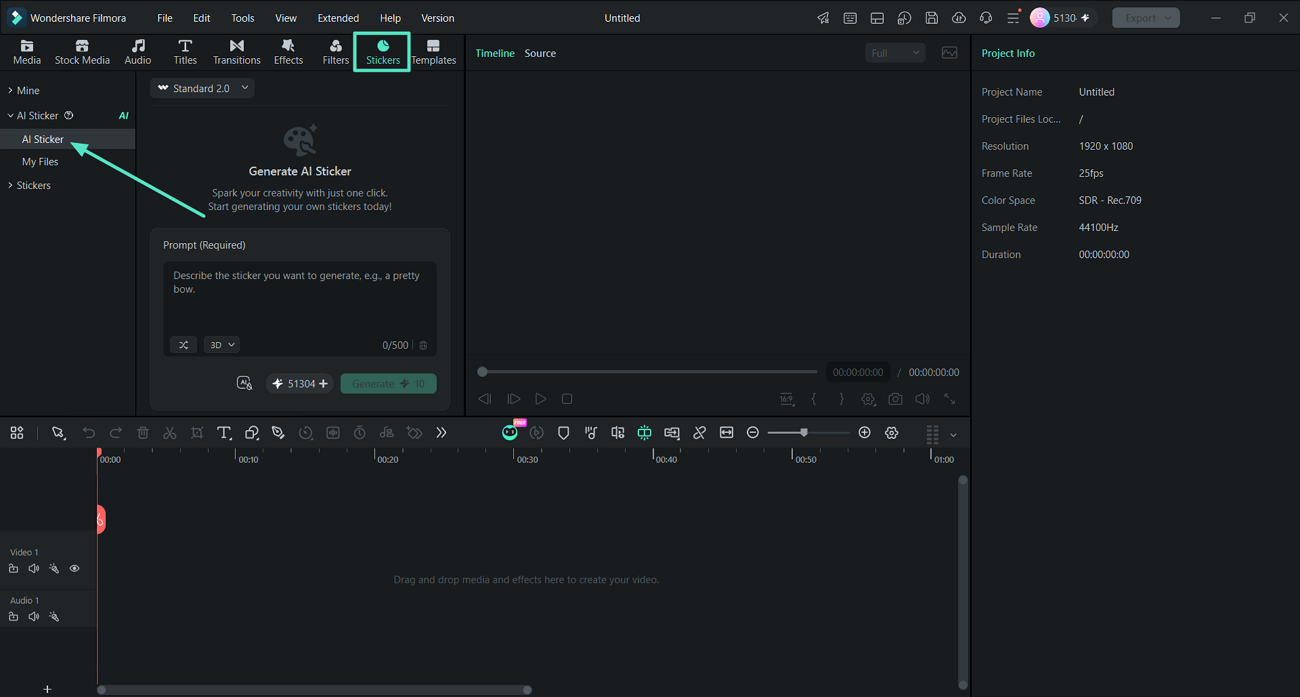
Open Stickers from the top toolbar, then select AI Sticker to begin creating. Prompts support 500 characters, leaving room for subjects, expressions, and useful style details. Go through the steps below to choose illustration, crystal, vector, sketch, or 3D:
Step 1. Open the AI Sticker Panel
Create a new project in Filmora and select “Stickers” from the top toolbar. Choose “AI Sticker” from the left panel to open the generation window containing the prompt field and available style options.
Step 2. Describe the Sticker and Pick a Style
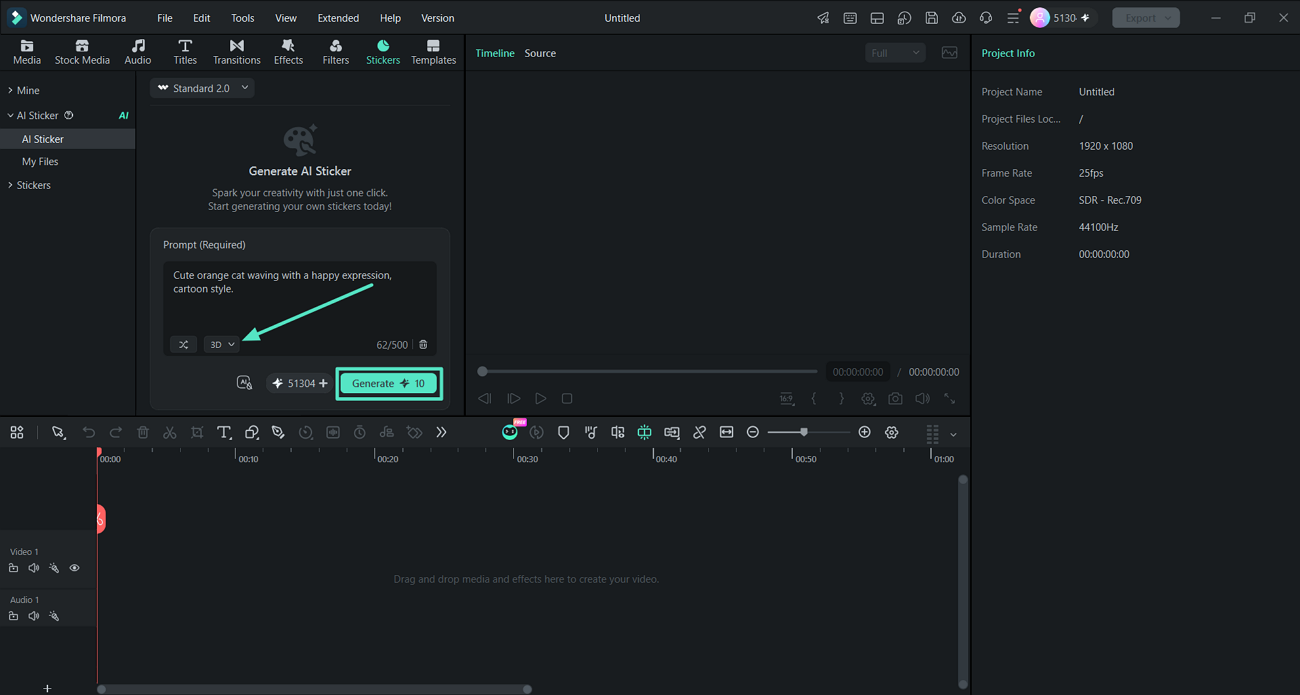
Write what the sticker shows within 500 characters and choose one of the styles sitting below. Then, press the “Generate” button to start the sticker generation process.
Step 3. Compare the 4 Sticker Outputs
Once the sticker outputs are generated, compare them and choose the most suitable option. If you want to use that sticker in a video, simply drag it over the timeline video. Head to the right-side panel and adjust its width, height, and other aspects under the “Basic” tab. To save the sticker, press the “Snapshot” icon and save the sticker as a PNG.
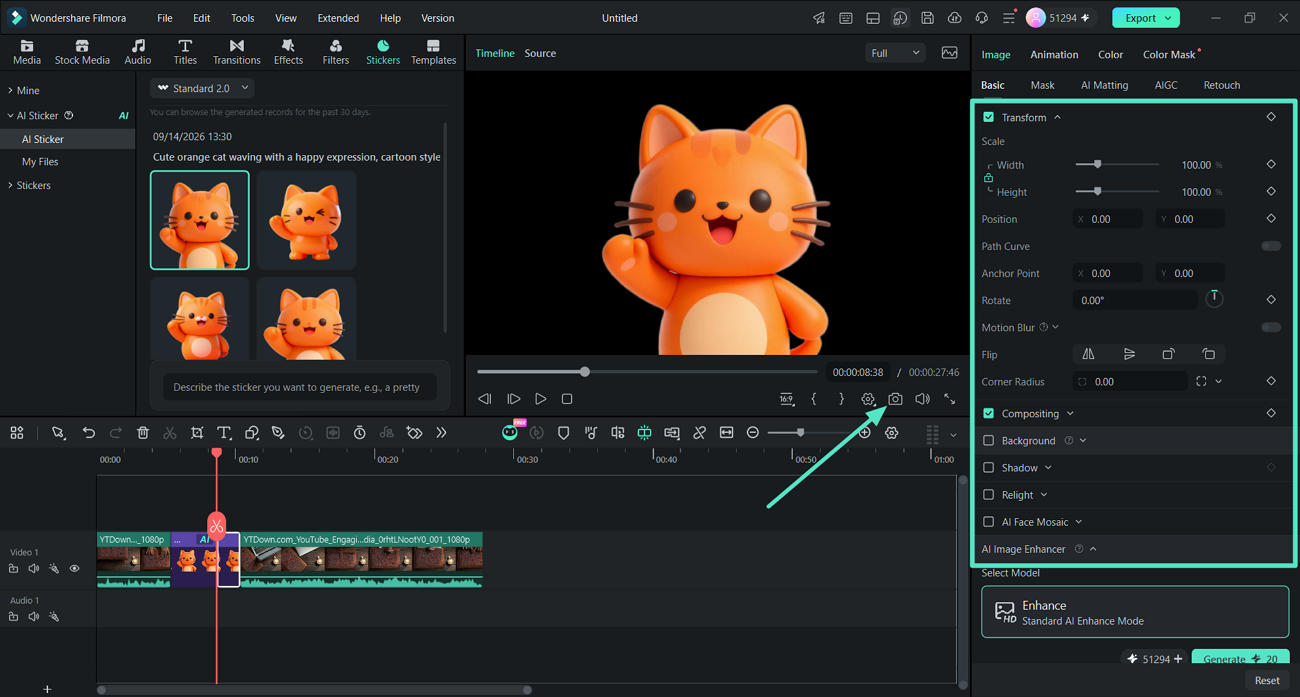
Note: Sticker generation uses credits, with a free allowance available for new users. Finalize your prompt before generating because each request produces 4 different sticker options.
Part 4. Prompt Ideas and Creative Uses for Custom Stickers
An AI sticker creator works best with focused prompts containing essential visual details. Now, we will explore useful prompt structures and creative applications for custom stickers:
Subject and Expression
Start with a clear subject and add one expression showing the intended emotion. For example, describe an orange cat holding coffee with a tired expression. Clear emotions help the generated sticker communicate reactions people can understand and share.
Subject and Visual Style
Add a visual style to tell the AI how your sticker should appear. Include details such as thick outlines, limited colors, or flat vector artwork styles. These choices help designs remain clear and readable when viewed at smaller sizes.
Brand and Community Stickers
A sticker creator can build matching sets for brands, channels, and communities. Repeat the same colors and visual style across prompts for consistent sticker sets. Change the subject or expression while keeping shared design elements across every sticker.
Sticker use depends on where it appears, not how the artwork gets created. Reaction stickers fit messaging threads, while branded designs suit posts and presentation slides. Livestream overlays and on-screen reactions can use the same file inside a video editor.
Part 5. How to Improve an AI-Generated Sticker Before Publishing
Those files get viewed at smaller sizes than their original canvas. A custom sticker maker result may reveal problems when reduced for use. Below are the key checks to make before publishing stickers online:
- Silhouette: Check the outline at thumbnail size so each subject stays recognizable. If the shape becomes unclear, interior details will not help much.
- Spacing and Edges: Leave enough space around edges to prevent clipping during publishing later. Inspect cutout edges for stray pixels after removing image backgrounds.
- Text at Actual Size: Check every word at its final display size before publishing it. Small text can disappear even when it looks clear on canvas.
- Background Treatment: Test the sticker on both light and dark backgrounds before use. Make sure outlines and shadows remain visible against each different background.
- Distracting Detail: Remove extra objects so the main subject gets more attention instead. Too many extra details can make the sticker harder to understand.
- Consistency Across the Set: An AI sticker creator may vary line weight, colors, and proportions. Compare the complete set and regenerate designs that break visual consistency.
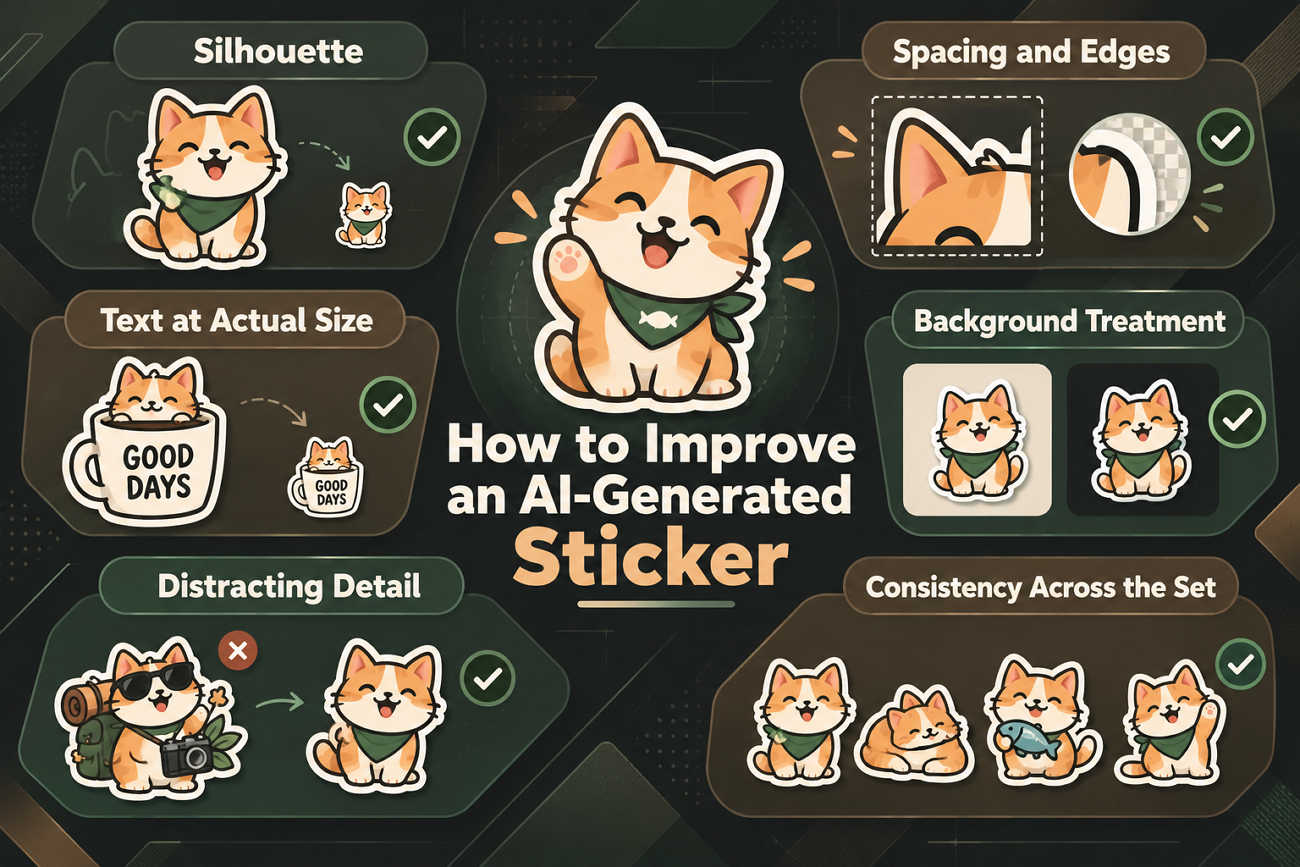
Note: The final check depends on where the sticker will actually appear. Place it inside the intended chat, post, or video timeline first. This reveals its true display size, background, spacing, and overall appearance.
Conclusion
To conclude, sticker making now relies more on clear descriptions than drawing. A clear prompt and chosen style help produce stickers matching your purpose. Review each design at its intended display size before publishing or sharing. For convenient results, consider Filmora as a sticker maker for custom designs.
FAQs About AI Sticker Generator
- Can beginners make stickers without any drawing skills?
Drawing skills no longer determine who can create stickers for their projects. Clear descriptions replace drawing skills, offering a shorter creative skill to learn.
- Is a sticker maker online as good as one built into an editor?
A sticker maker online works well for single designs shared in chats. For video stickers, editor-based generation avoids downloading and reimporting every separate file.
- How detailed should an AI sticker prompt be?
Prompts should name the subject, expression or action, plus chosen visual style. Filmora allows 500 characters, though effective prompts often use less than half.
- When should I save a sticker as an image rather than use it on the timeline?
Save a PNG whenever the sticker will leave your current project later. This includes messaging apps, slide decks, and files you expect to reuse.